About

In the age of AI-made answers,
we build a place where thinking survives.

Conversational AI like ChatGPT, Gemini, and Claude hands anyone a plausible answer in seconds. But getting an answer easily and truly understanding it are two different things.

Thinket began with a simple goal: as you talk with AI, the questions that branch off, the context you've traveled through, and your sense of what you do and don't yet understand should never get lost.

We do not think for you.
We make room for your thinking to continue.

01 · The fluency problem

The moment you read an answer, you feel you've understood it

Answers from conversational AI are natural and complete. Sentences flow without friction, concepts arrive well organized, conclusions sound confident.

So it's easy to feel we've understood before we've actually examined anything. Being able to follow an explanation gets mistaken for being able to explain and judge on our own.

Wrong answers aren't the only problem. Even a correct answer can leave us feeling we've understood it when we haven't.

Losing sight of what we don't know is a problem, too.

AI answers our question and, at the same time, can erase the feeling that anything is left unresolved. We get the answer and move on, without checking its premises, how its concepts connect, or which parts we never actually understood.

An old problem of learning, made bigger with AI

This problem was not born with AI.

Learning psychology has long distinguished between following a well-organized explanation and real understanding: being able to retrieve, apply, and explain on your own. Without a chance to test your own understanding, the explanation itself gets mistaken for understanding.

Conversational AI personalizes this old problem and makes it ever-present. It can produce a plausible explanation for any question at any moment, instantly filling in the very steps the learner was supposed to think through.

The more powerful explanations become, the better our tools for checking our own understanding need to be.

02 · The verification paradox

But even deep thinkers lose their way

Check every unfamiliar concept, verify each claim, chase every gap in the logic, and the questions multiply fast. Yet a standard chat piles that entire exploration into one long conversation.

Those who never doubt move on too fast.
Those who doubt to the end lose their way back.

03 · The structural cause

Thought branches. Chat flows in a single line

Halfway into understanding one thing, we hit a concept we don't know, and from it several new questions branch off. A new fact sends us back to revise our first premise; we wander down another branch, then return to the original question.

Our thinking grows like a tree.

But today's AI chat arranges questions and answers in time order alone. It records when something was typed, not which question it grew out of.

The problem isn't that the conversation goes unsaved.
It's that the structure of thought inside it does.

As the conversation grows longer, the attention and working memory that should go into understanding get spent on remembering instead: where was that part again? Why did I ask this? What was this answer supposed to verify?

Thinket doesn't treat this as a personal failure of focus. It's a structural failure of the interface, one that crams nonlinear inquiry into a linear log.


04 · The design principle

Keep the labor of thinking. Remove only the clutter

We don't believe making thinking easier is always a good thing. The effort learning requires and the friction the interface creates are two different burdens, and they must be told apart.

Keep · the essence of learning

Effort worth keeping

  • Understanding a concept in your own words
  • Doubting the premises and grounds of a claim
  • Connecting different pieces of information
  • Reflecting on what you know and don't know

Offload · structural clutter

Effort to hand over

  • Scrolling back through a long chat to find that one spot
  • Remembering where a question branched off
  • Holding scattered context in working memory
  • Reconstructing what was verified and what remains
The thinking that matters stays yours.
The structural burden that gets in its way goes to the tool.

05 · From principle to product

So we built Thinket

Branch a new question from any phrase in an answer, trace the path you took no matter how deep you go, and when the exploration ends, gather its scattered branches into one piece of knowledge.

Branch

Start a new question at any point of curiosity in an answer. Extend a branch of thought without losing the context you already have.

Path

See where the question in front of you began. However deep the exploration goes, you never lose the way back to your first question.

Gather

When the exploration is over, look back over the branches of questions and answers. Put what you've learned, and what's still uncertain, into your own words.

While AI's answers fill the chat window,
Thinket keeps the thinking you did on your way through them.

06 · What we do not promise

What Thinket does not do for you

  • It doesn't make every AI answer true.
  • It doesn't automatically turn you into a critical thinker.
  • It doesn't write your questions for you, or turn what you haven't understood into understanding.

What Thinket preserves

  • It preserves the conditions under which you can doubt, go back, branch off, and reconnect.

07 · Where it began

It began with a problem we lived through

Thinket didn't start from a grand business idea. It started from a frustration we ran into again and again while studying and building with AI.

Ask AI one thing and a long answer comes back, carrying several concepts that themselves need checking. Digging into them one by one, the conversation kept growing, yet by the end of the session, it was a blur what we had first asked, what we had learned, and what we still didn't understand.

We questioned to understand more deeply, and the deeper we went, the more context we lost.

Having majored in psychology, with coursework in cognitive load and working memory, we couldn't dismiss this as a lapse of focus or a minor usability annoyance. It looked more like a structural problem: a linear chat interface failing to hold nonlinear human inquiry.

So we began building a tool that preserves the way questions branch.

A small prototype, built as a final project for a Computer Science and Engineering course at Seoul National University, was selected as a Top Project, and grew into Thinket, an AI exploration environment you can actually use.

think+thicket=Thinket

Thinking is not one straight road. It's closer to a thicket, where questions and discoveries grow entangled. Thinket isn't a service that builds more roads for you. It's an environment that helps you see the paths you've walked, and the branches you haven't yet tried.

2026.01
SoLT, the first platform modeling questions and answers as a tree, is up and running (month of the first GitHub commit)
2026.05
First prototype as a final project in an SNU computer programming course
2026.06
Selected as Top Project
2026.07
thinket.ai opens, private beta begins

08 · Our direction

After better answers, we need better places to think

AI will keep getting more accurate, faster, and more fluent. But better answers alone don't deepen human understanding. Rather than making AI think more like a human, Thinket works on helping humans keep thinking like humans while working with AI.
For the people who don't stop at the answer.
Get Started →

Design

All these metaphors are here to give your thinking
room to grow.

01 · The name

The name

The way follow-up questions branch off as an inquiry deepens calls to mind the countless branches spreading from a tree. Thinket takes this metaphor of "branches of thought" and sees every conversation in the main chat as a tree.

think + thicket = thi·n·ket

thicket /ˈθɪkɪt/

A dense, but generally small, growth of shrubs, bushes or small trees; a copse.

Wiktionary · CC BY-SA

Fuse think, the act of thinking, into thicket, a word for dense brush, and our exploration tool Thinket is born.

The name is the very structure of the product. Each session, each chat, becomes a forest of its own, and it grows denser with the depth and breadth of your inquiry.

Question : tree
Chat : forest

02 · Polygon

Polygon

Thinket's trees, forests, and icons are all drawn in a polygon style: a way of keeping only the essence of a shape with just a few polygons. Instead of depicting things realistically, we kept the fewest possible faces and angles. This is the same thing our product does. It clears the clutter out of a tangled conversation and leaves only the structure, the branches and the paths, standing sharp.

A trunk and a few triangular leaves are all it takes to make a tree.

03 · My forest

My forest

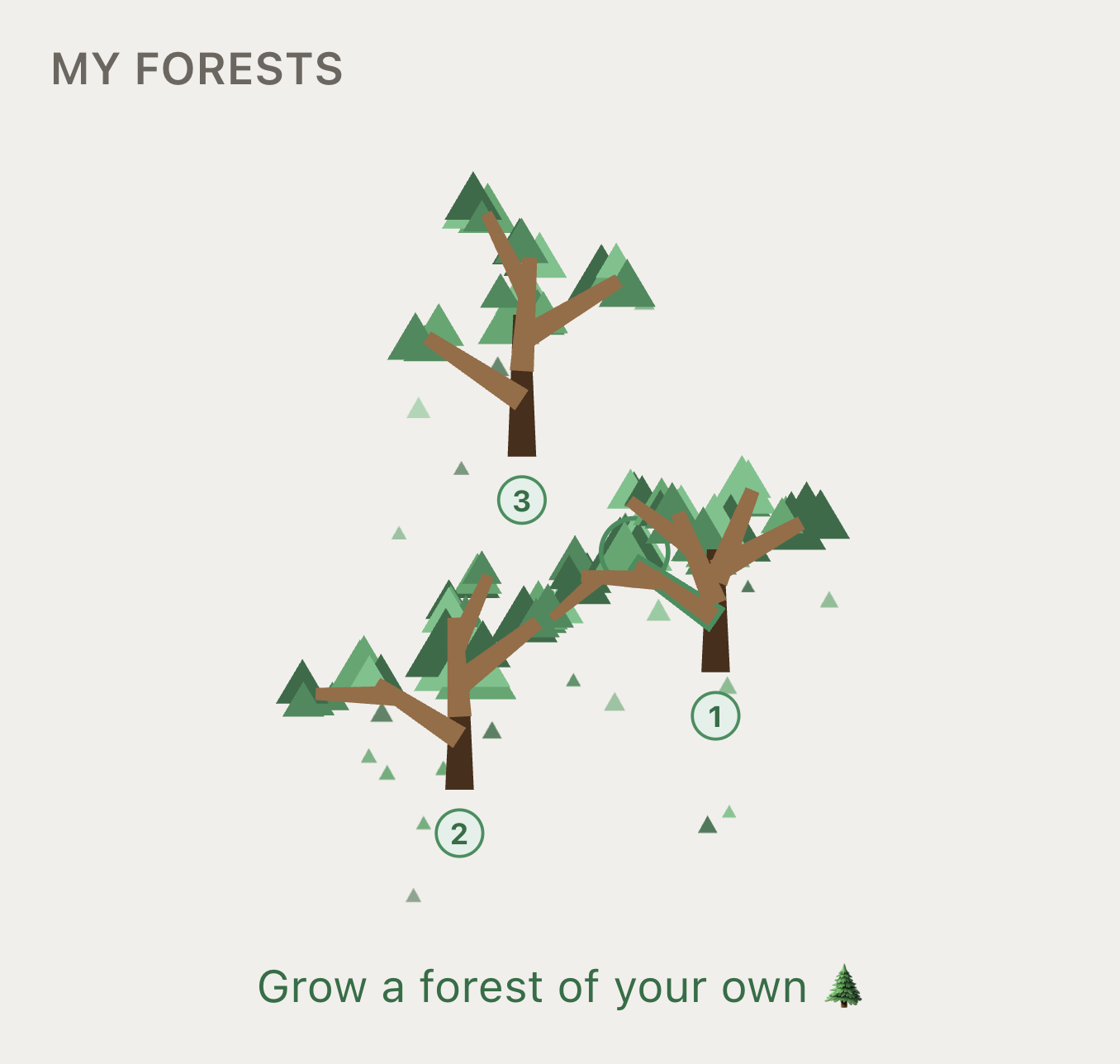
As your exploration deepens, the trees you plant gather into "My forest." Each pair, your question and the AI's answer, becomes a single tree, and the forest grows denser as your inquiries pile up. Records of exploration scatter easily, so we collect them into one landscape, letting you look back at a glance on everything you've been digging into and keep it as your own. Perhaps knowledge isn't something you stack up, but something you grow.

The shape of each tree, and the spot where it's planted, is different every time. Every branch and leaf is drawn and placed differently, following the length of your questions and the AI's answers. No forest can ever be reproduced, and that's exactly what makes yours one of a kind. Your record of exploration belongs to you alone, and we wanted to carry it into a single picture, just as it is.

The app's 'My forest' view: polygon trees planted in their own spots, forming a forest.
"My forest" in the app. The trees you plant gather into one landscape.
Get Started →

Wiki

A manual of what's here and how to use it. Explore in depth, with real examples.

01 · Getting startedGetting started

Thinket is a web app you use right in the browser, with nothing to install. The screen has three panes: the navigation tree on the left, the conversation in the center, and context and follow-up questions on the right.

  • Try it first. No login needed: open the demo and start. The Example tab has a forest already planted; the Start from scratch tab begins with an empty one. The AI really answers in the demo. Up to five times a day, no sign-up. Thirty seconds is enough to get the feel.
  • Log in with a Google account. Thinket is in private beta for now, so only emails approved by the operator can log in.
  • Put your first question in the center input and a tree is planted. Ask about something entirely different in the same forest and another tree grows; follow-up questions that split off from an answer become branches. That is why every forest in the list is labeled "n trees · m branches": trees are the questions you started fresh, branches are what grew out of them.

Try it yourself →

02 · In practiceHow it gets used

Before we take the features apart one by one, here are three scenes of how Thinket is actually used.

A researcher, cracking the jargon in a paper. You hit an unfamiliar term while reading a paper and ask Thinket. But the answer that comes back carries three or four more concepts you have never seen. Before, you would have searched each one in a new tab and lost track of what you originally asked; here, you sweep a highlight over every unfamiliar spot in one pass. Branches open on the right, and however deep you dig into each one, your first question keeps its place in the tree. When you are done reading, the tree itself is a map of what you didn't know and how you filled it in.

A self-directed learner, digging into a concept. Starting from one big question, "what is entropy?", an exploration often runs four levels deep: statistical mechanics, microstates, why the logarithm appears, and on to information theory. In a conventional LLM chat, that first question would be lost somewhere beyond the scroll by now. Thinket always shows, at a glance, the path the current conversation took from that first question. If you get confused, one click takes you back to any step, and you can branch off again from there.

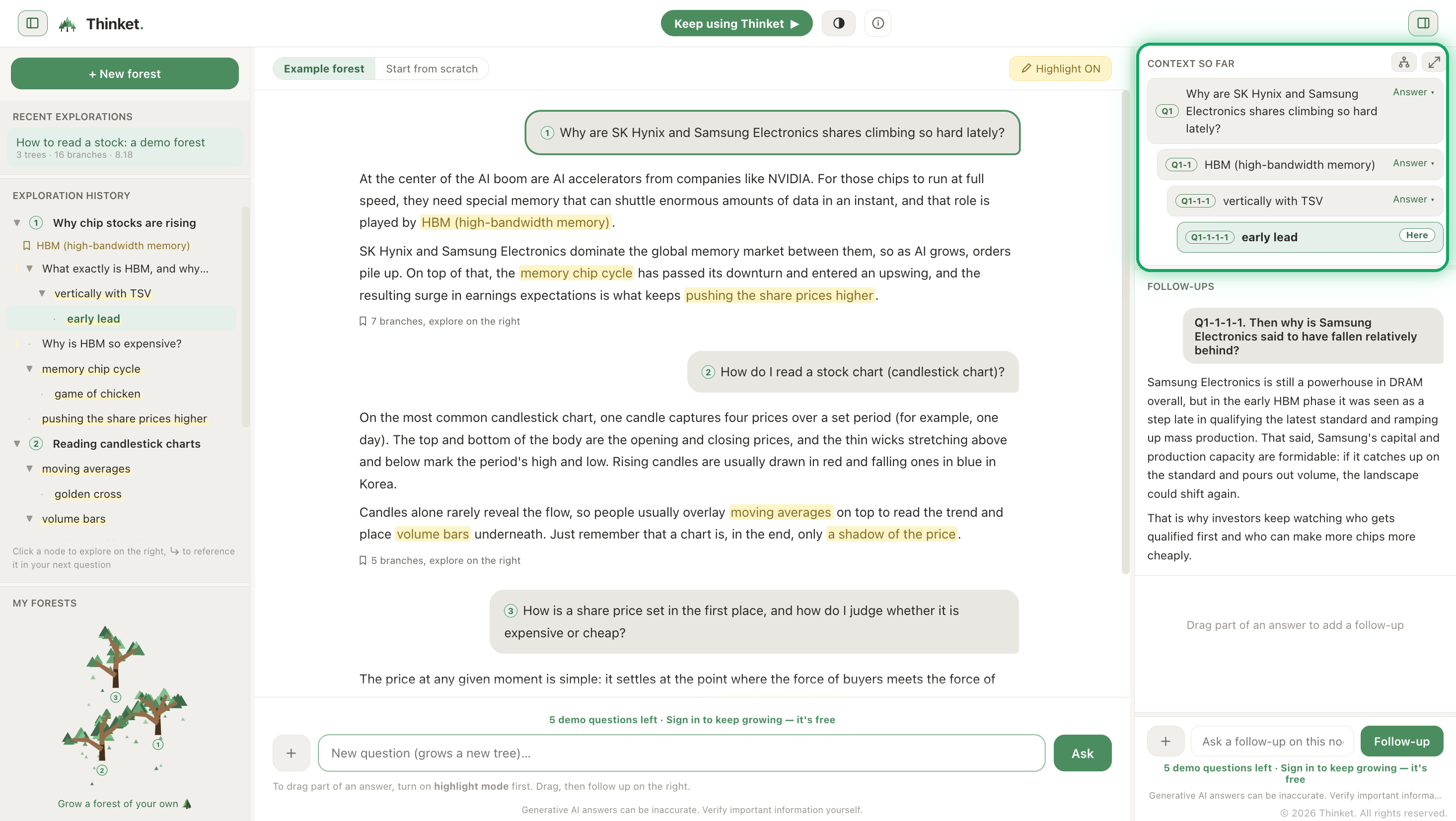
At work, in daily life, anywhere: taking a tangled topic apart. One question, "why are semiconductor stocks rising lately?", pulls in HBM, memory cycles, and the relation between earnings and share prices all at once. Open each of the three as its own branch and work through them in parallel, and the big picture comes together on one screen without them tangling. It doesn't have to be a grand topic, either. Throw anything in, and branches grow from it.

Try it yourself →

03 · BranchBranch: a twig sprouts from a highlight

When a phrase in an answer sparks your curiosity, this grows a new branch (a follow-up question) from that very phrase. It is the heart of Thinket.

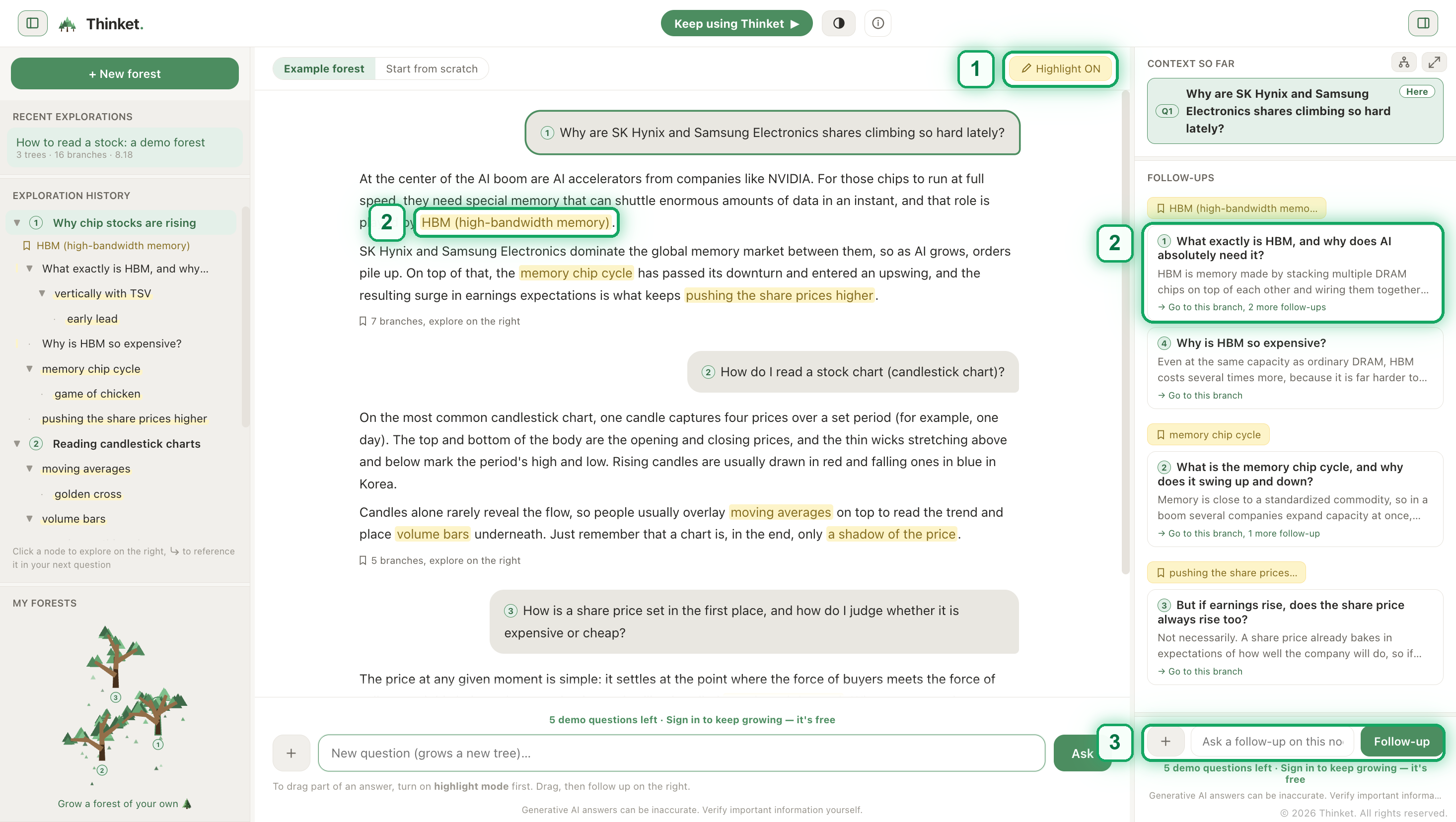
  1. Turn on highlight mode at the top of the center pane.
  2. Drag across the phrase you are curious about in the answer. Draw it in the center answer, and a question box opens right beside that phrase. Draw it in the right panel or in Take stock, where an input already sits just below, and the follow-up box on the right opens as before.
  3. Type your question and send it, and a child node is created with that phrase as its parent. The AI is also told that this is a question about that phrase. The moment you send, the follow-up panel opens on the right and the answer streams in there.

The question box carries both Undo highlight and ✕ (close), and they do different things. Closing keeps the highlight; only Undo removes it. A highlight you closed without asking anything reopens the same question box when you click it again.

The actual screen: ① the highlight-mode toggle at the top of the center pane, ② a highlight in the answer with its branch open on the right, ③ the follow-up input on the right
The numbers match the steps above. ② the highlighted phrase opens as a branch in the follow-up pane on the right.

The highlighted spot stays in the answer as a marker, so even later you can see where a branch split off. You can split as many branches from one answer as you like, and each branch grows its own conversation, so the flows never tangle. A highlight that already carries a follow-up cannot be erased: a branch is hanging from it.

Undoing a highlight

  • Press ⌘Z (Ctrl+Z on Windows and Linux) and the highlight you just drew is removed. Keep pressing to keep going back, newest first.
  • Highlights that already carry a follow-up cannot be undone. That spot is the address of a branch. Remove it, and the label on the left, the marker in the center, and the group on the right would all lose what they point to.
  • While you are typing in the question box, ⌘Z undoes your text. It leaves highlights alone.
  • Undo covers only what you just did in the forest you have open. Switching forests or reloading resets it.

Drawing over an existing highlight

In the center answer, drawing over a spot that already has a highlight is blocked ("There's already a highlight here."). If highlights overlapped, clicking those characters could not tell which branch you meant. In the right panel and in Take stock, only highlights that carry a follow-up are protected.

Try it yourself →

04 · Path to rootWayfinding: the context up to here

This always shows how the question you are looking at branched off from the first one, the path all the way to the root. The way you walked is never erased.

Select a node from the tree or from a highlight, and the "context up to here" panel on the right lays out the path from the root to the current node as a staircase. However deep you have gone, this one panel takes you straight back to "what did I originally want to know?"

The actual screen: select a deep node and the "context up to here" panel on the right lays out the path from the root to the current node as a staircase
Select a node and the "context up to here" panel on the right lays the path out, root → here.

The path also carries an efficiency indicator: "sending only the N on the path vs. M in total." It shows how much you save when a "this branch only" question sends just this path instead of the whole conversation.

Try it yourself →

05 · Context controlContext control

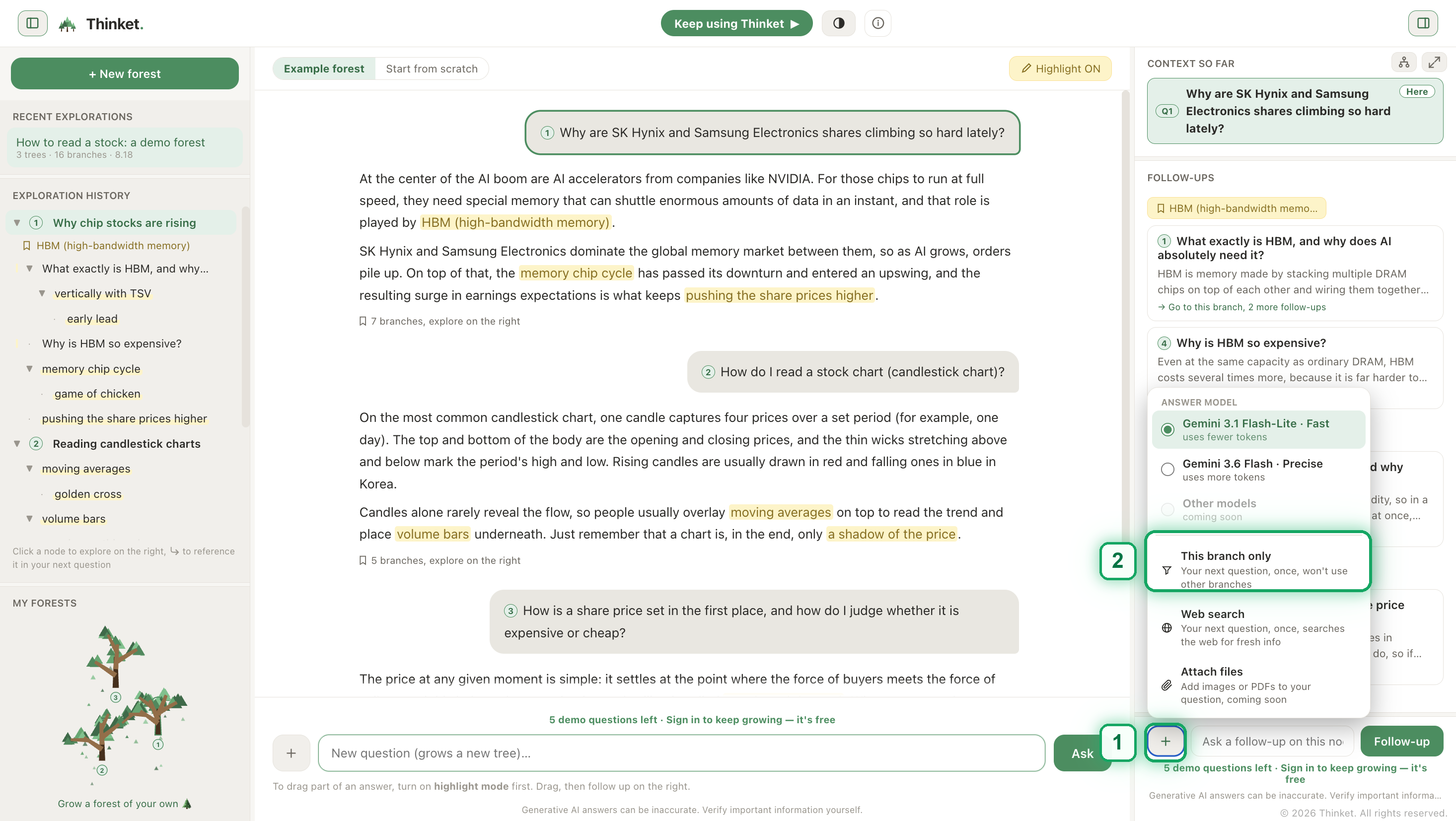
By default, like any chat, Thinket sends the whole session as background context and answers in the flow of your current branch. The tree is a map for organizing your lines of thought, not a wall between them. Only when side branches start muddying the answer should you turn on "this branch only" in the + menu: for that one question, only the path from the root to the current node is sent.

The actual screen: ① the + button left of the input, ② the 'this branch only' item in the open menu
① Press the + button next to the input to open the menu, ② where you can turn on "this branch only".

When "this branch only" shines:

  • When the answer gets muddy. If unrelated branches seem to be contaminating the answer, switch it on once and focus the AI on the current branch alone.
  • When you want to save tokens. The larger a session grows, the wider the gap between sending everything (O(n)) and sending the path (O(depth)). The deeper and broader the forest, the bigger the saving.

Need content from another branch in a "this branch only" question? Pick just the nodes you need with reference ↪ and they are actually included. (In the default mode, a reference instead works as emphasis, "pay special attention to this passage", on content that is already in the background.)

Try it yourself →

06 · Cross-path referenceReference ↪: pulling in context from another branch

This pulls content from outside the path (another branch, or even another tree) into the background context of your next question. Context isolation stays intact; you connect only as much as you need.

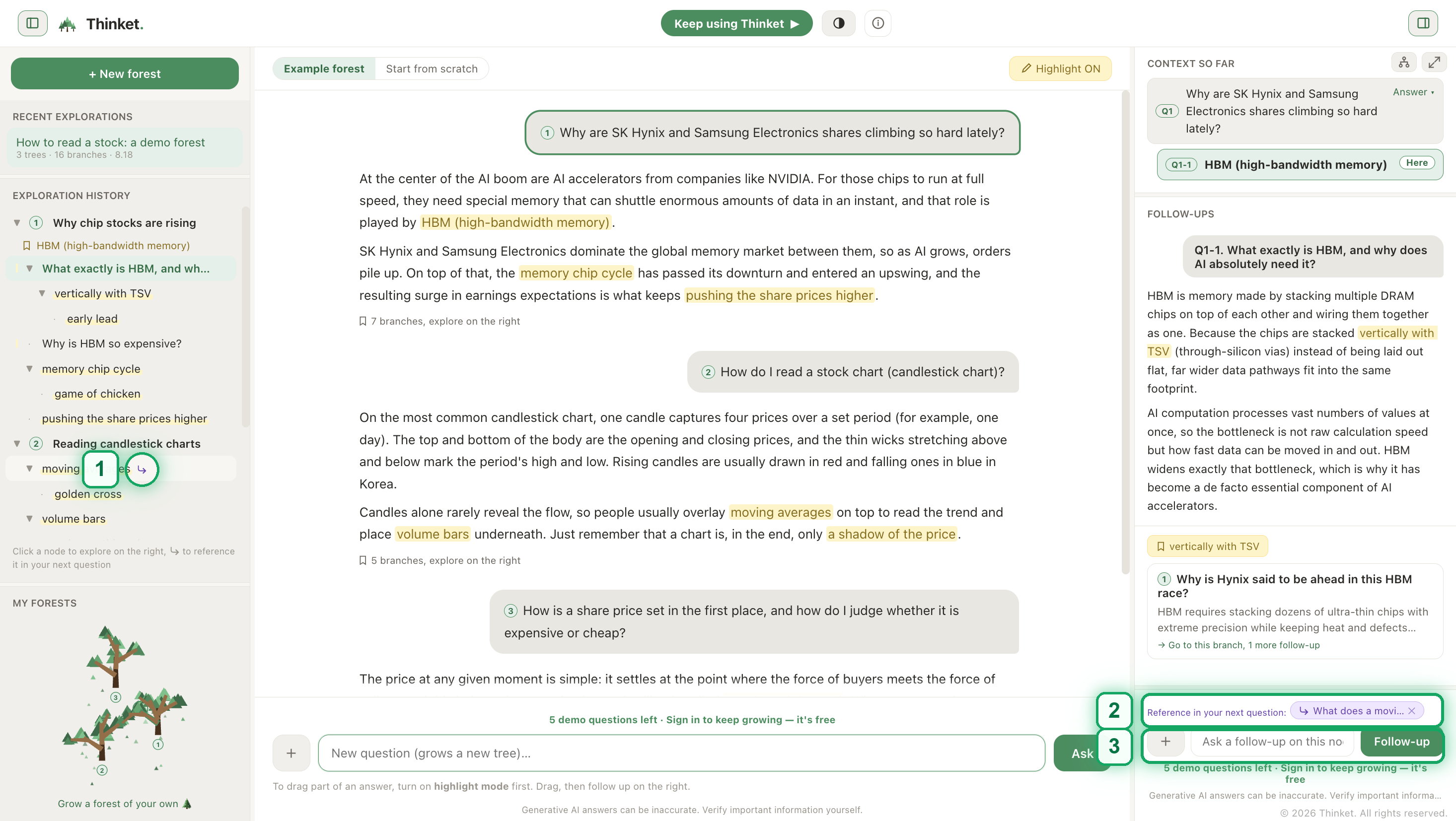
  1. Press the ↪ button on the node you want to consult, in the left navigation tree.
  2. The node drops into the reference basket above the input on the right (you can add several).
  3. Send your question, and the Q&A of the collected nodes travels along as "reference material."
The actual screen: ① the ↪ button on a node in the left tree, ② the reference basket above the right input, ③ the input
The numbers match the steps above. A node added with ↪ lands in ② the reference basket.

For example: when a concept you worked out in tree 3 is needed for a discussion in tree 1, you don't merge the two trees; you just lay that one node on as a reference.

Try it yourself →

07 · My forestMy forest

A visualization in which the structure of your conversation grows into the shape of a real forest. It lives in the "My forest" panel at the lower left.

There is nothing to operate: it grows as you explore. Each tree in the chat becomes a tree in the landscape, and as branches multiply, the canopy thickens. How deeply you dug today remains as scenery. It is the quietest reward in Thinket.

Try it yourself →

08 · FinderThe navigation tree (finder)

The structural navigation on the left. Every tree and branch in this chat appears as an indented outline.

  • Click a node to jump to it, and its Q&A and path open on the right. No rewinding the scroll.
  • The ↪ button adds that node as a reference for your next question.
  • In the forest list above, you move between forests (sessions), and + new forest opens a fresh one.

Reading the rows (labels)

Each row in a forest's history is one question. Labels are chosen like this:

  • Top-level rows carry a summary of that tree. However long the question you planted, the row shows a short name the AI wrote from your first question, the same sentence as the forest's title in the recent list above. Hover the row to read the original: the full question appears as it was.
  • Rows below show the phrase itself (underlaid in pale yellow) when the question branched off a highlight, or a summary of the question when it was asked about the whole answer.
  • When one phrase carries several follow-ups, a yellow highlight-group row stands in for the phrase, and the questions hang indented right beneath it. Those hanging rows show the question in full: summarized, siblings would look alike and you could no longer tell which is which.

Try it yourself →

09 · Take stockTake stock: turning exploration into knowing

This shows a forest you have finished exploring as a map you can take in at a glance. Exploration happens top-down, splitting as it goes, but knowing comes together bottom-up. Take stock reads the same tree in the opposite direction: the details at the tips merge into the middle, and the middle merges into the root.

Press ⤢ or the Take stock icon in the right panel's header, and the view widens into an expanded map. There are three ways to look at it:

ModeWhat it shows
BranchOne strand from the root to the current node, laid out wide, for reading
Take stockThe whole forest as a map converging left to right, for structure
In orderIn the order you asked, for retracing
  • Click a node and a reading card opens in place, showing the original question and the full answer. The map itself does not move; the card is a separate layer floating above it.
  • Use the ▼/▶ in front of a node to fold and unfold the branches beneath it. A folded node carries an "n below" badge so you know how much is tucked away.
  • Expand all | Collapse all in the header does it in one go. The map rescales itself to fit the box: being visible at a glance is Take stock's reason to exist.
  • You can draw highlights inside the reading card too. A highlight drawn there flows straight into the input on the right, without a popup (the input already sits just below).
  • What each node shows is a summary of the question, not of the answer. Thinket exists to answer "where was that thing I asked?", and what grew out of a highlight was a question, not an answer.

Try it yourself →

10 · Your forestsManaging forests: names, subtitles, export

As forests pile up, telling them apart and finding them again starts to matter. These are the tools for that.

  • The title is written by the AI from your first question. If you don't like it, double-click the title and write your own, in the recent list on the left or in the center header (hover, and a ✎ appears). A name you set yourself is never overwritten by the AI.
  • A subtitle is a note of your own, separate from the title. Press + Add a subtitle in the center header. If the title says what the forest is about, the subtitle says what the forest is to you.
  • Global question search (the magnifier in the top bar) looks across the questions of every forest. Pick a result, and you land straight on that node in that forest. It plays a different role from your browser's ⌘F, which only searches the screen you are on.
  • Export my data: click the wordmark at the top left and open the account menu. You get every forest as JSON and Markdown. It is free; we don't charge you to take what you wrote with you.
  • To delete a forest, press the trash can on its row in the list. Every tree you planted goes with it, so we ask once more.

Try it yourself →

11 · Your screenMaking the screen your own

Thinket is a three-pane screen, but you don't always need all three. Fold and switch off what you don't.

  • Opening and closing panels: press the buttons at the left and right edges of the screen, and that panel opens or closes in one click. When the window narrows, panels fold on their own so the center keeps a readable width, and they come back when there is room.
  • Turning the ⓘ help off: press the ⓘ button in the top bar and the ⓘ markers beside panel titles disappear; hovering a title no longer pops up an explanation, either. Once you know your way around, explanations popping up every time your cursor passes get in the way. Press the same button again to bring them back.
  • Light / dark: switch in the top bar. If you don't choose, it follows your device setting. The choice applies to the app and this entire site together, and it is remembered on your next visit.
  • On narrow screens (phones, tablets) the left and right panels become drawers. Open and close them with the buttons at the screen's edge.

Try it yourself →

12 · Models & limitsChoosing a model, and usage limits

How to choose the AI model that writes your answers, and the usage limits of the free beta. No API key of your own; the server covers the cost.

Pick the answer model from the + menu in the input (◉ Gemini 3.1 Flash-Lite · fast / ○ Gemini 3.6 Flash · precise). The model you choose stays selected, applying from your next question until you change it. Models we don't support yet are marked coming soon.

ModelProfileTokens
Gemini 3.1 Flash-LiteThe default model: fast, and enough for most explorationUses little
Gemini 3.6 FlashThe advanced model, for harder questionsUses more

Usage is managed in daily tokens. Every account is refilled to full each day (100 by default, resetting at midnight Korea time), and each question spends a little, in proportion to its actual cost: short, light questions cost less; long, deep context costs a bit more. You can check your remaining tokens any time on the gauge in the top bar. Separately, if the service as a whole reaches its monthly budget, it locks for the rest of that month and reopens on the 1st of the next. When you run out of tokens a notice appears, and failed requests don't consume any.

Below the input, a standing notice, "Answers are generated by generative AI and may be inaccurate", is always shown. It is a legal disclosure that the output was produced by generative AI. AI answers can be wrong, so add your own verification before important decisions.

Try it yourself →

13 · Live search · betaLive search (beta)

For questions that need "the information of this very moment", such as today's news, prices, and exchange rates, this lays a real-time web search under the answer. It is a separate axis from how "smart" the model is.

It turns on in two ways:

  • Automatic detection. When you send a question, Thinket classifies on its own whether it needs current information. If it looks like it does, a "Use live search?" confirmation appears; allow it, and the answer is grounded in a search. Turn on "auto-allow from now on" to proceed without the prompt.
  • The manual "web search" toggle. Turn on web search in the + menu to the left of the input, and that question definitely searches (shown as a chip above the input while it's on). Even when auto-detection misses, this toggle is your backup.

Answers that actually drew on a search carry a "web search applied" mark and source links at the bottom. The limit is 20 searches a day per account, and you can see the remaining count in the + menu's web search item. Once the limit is reached, Thinket answers from stored knowledge without searching, and says that it did so. The answer itself is never blocked.

Try it yourself →

14 · Design rationaleThe rationale behind the design

Cognitive Overload → Cognitive Offload

We don't take away all the effort of thinking. We clear away only the pointless effort.

There are two kinds of effort in thinking. The effort of chewing on a concept and digesting it: that is learning itself, and it must not be taken away. And the effort of rewinding the scroll and holding scattered context together in your head: that is mere clutter created by the structure of the screen. Standing on cognitive load theory, Thinket separates the two and hands only the clutter over to structure.

Sweller · cognitive load theory Cowan · working memory limits

Thinket was designed by an undergraduate in the Department of Psychology at Seoul National University, grounded in the cognitive psychology and learning science literature. It began as a final project in a programming course at SNU's Department of Computer Science and Engineering, where it was selected as a top project.

Get Started →

Blog

Writing on inquiry and learning: what it takes to truly understand when answers come instantly.

Get Started →

Pricing

Three plans

No Subscription

Pay as you go

Buy credits when you need them.

  • 1,000 credits$8
  • 2,000 credits$156% off
  • 5,000 credits$3512% off
  • 10,000 credits$6519% off
  • 20,000 credits$11031% off

Standard

$5.83$7.00 / month$7.00 / month

$70.00 billed yearly, 17% offSave 17% with yearly

  • Unlimited app use
  • Your data, saved in the cloud
  • Shrub, the online space for sharing knowledge: read and write (no downloads)
  • Needs a Claude Code or Codex subscription available on your computer
  • No credits for the web included (sold separately)

Pro

$8.33$10.00 / month$10.00 / month

$100.00 billed yearly, 17% offSave 17% with yearly

Everything in Standard, plus:

  • 500 credits every month
  • Every Shrub feature, downloads included